
THE IMPRESSIONIST BRUSH TOOL
The Impressionist Brush is a fascinating painting tool to use. It is great fun to use and you can never be sure of the effects that it will produce, which adds to its charm.
The Impressionist tool is found beneath the ordinary brush. By clicking and holding the brush tool icon a fly out menu appears. Select the Impressionist tool.
BRUSH FLY OUT MENU PSE 2 & 3
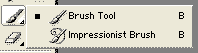
BRUSH FLY OUT MENU FOR PSE4 & 5
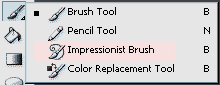
BRUSH FLY OUT MENU FOR PSE 6 to 9

BRUSH PLACE FOR PSE 10 TO 13.
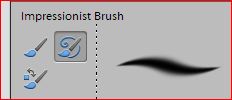

The default options work quite well on most pictures. The items beneath the More Options or Advanced we will leave for now but it is useful to know they are available. The Opacity as set is too high and can be set much lower in the range 5% to 60%.
MODE OPTIONS MENU
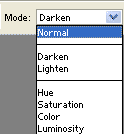
The mode options menu has limited possibilities and we would limit it still further to the top three. In Normal option the brush affects all pixels whereas for the Darken mode only dark pixels are controlled. Similarly for the Lighten mode only the light pixels are affected.
To show you the effects that this brush can produce we will give you an example.
GARLIC
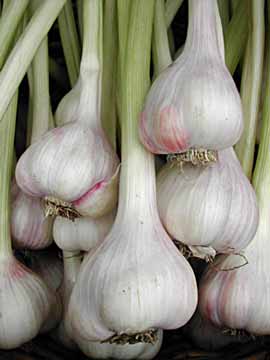
On this image of Garlic we tried using both the Darken and Lighten modes as you can see below. We found with some experimentation that the Opacity was first used at 30% and the brush used around the edges of the picture. The Opacity was then changed to 8% and painted over the central areas.

The result of about 1 minutes work is shown below.
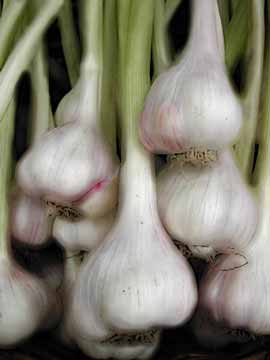
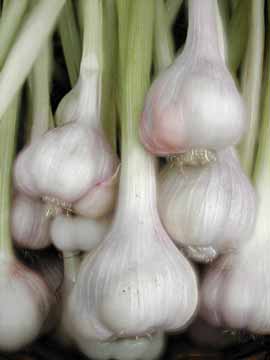
GARLIC – DARKEN MODE VERSION& LIGHTEN MODE VERSION
We hope you can see the difference. To us it seems that this technique is akin to the way some filters operate but with the advantage of being able to apply the filter to specific regions.
Layer Mask
As a suggestion try adding a layer mask to the top layer. By doing this you can by using a normal brush paint out the effect of the Impressionist Brush just where you wish.
Advanced Mode
Clicking this show the Brush Settings. Take care in using these. Take note of the settings prior to altering them. It starts with Tight Short in a drop down box. The Area control changes the region over which the brush works and the Tolerance starts at zero for maximum effect. Just 8% is as high as you want to go.
Try out the other settings too. Quite fascinating. This arrangement has been available from PSE2!
Exercise
Choose a suitable photo of your own and have a
play with the Impressionist Brush. Ensure that the
photo is only about 1000 pixels maximum and save
in JPG and then email us your work. Perhaps you
could send us results from Darken and Lighten
modes.