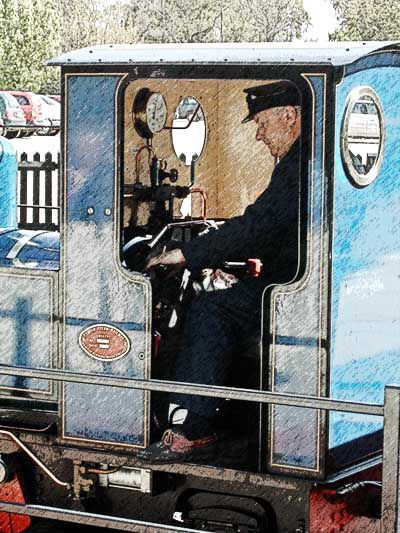
Dual Filter Process
I have used this method for making large prints for many years and has been very useful. The method produces photographs that have an old world feeling since they are yellowish and slightly faded. For the right image it makes a wonderful image. The type of photograph I have used has been those with people that are working at a task. However, this will work on many other types of image.
The principal of this technique is to make three layers and use a different filter on the top two layers. Blending and Opacity changes are used to balance the result.
The two filters used are the Graphic Pen and Poster Edges using any variety of Photoshop.
1. Open a suitable image. Correct this for brightness, contrast and crop. Then re-size to, say, 2000 pixels on the longest edge.
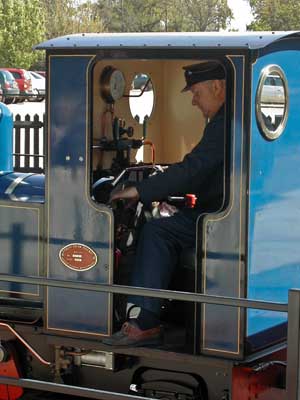 Start
Start
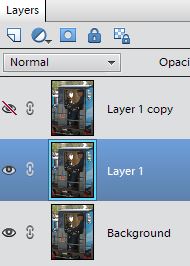
2. Make two extra layers using Layer > Duplicate Layer from the top menu bar.
3. Click the Eye icon on the top layer to make it invisible and activate layer two.
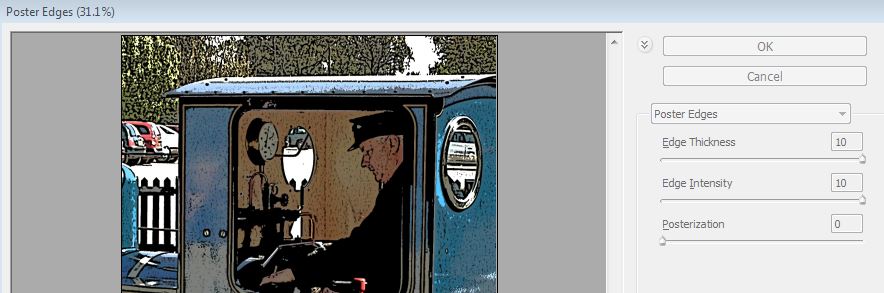
4. From the Filter menu pick Artistic > Poster Edges. Control the settings to produce the effect a bit like measles or speckles on a face. These setting might be Edge Thickness and Intensity to 10 and Posterization to 0.
5. Now activate the top layer and from the Filter menu pick Sketch > Graphic Pen.
6. Adjust the settings to Stroke Length = 15 and Light/Dark Balance to about 50. The Stroke Direction as you wish but a diagonal looks best.
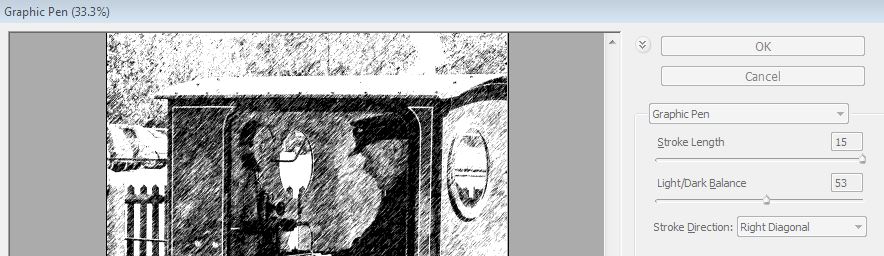
7. Now the fun part starts. Blending and Opacity.
8. Still on the top layer try reducing the Opacity to 50%. This maybe all you need to do. But ...
9. Click on the Blend mode box that currently reads Normal and from the drop down box select Pin Light. Now this is just one choice and it is worth checking other modes.
10. Having satisfied oneself here activate layer two and open the Blend modes drop down box. This time try picking Screen. Again try other modes.
11. Save this version as a TIFF images. Then Flatten the layers from Layer in the top menu bar > Flatten Image.
12. Save again as a JPG image. Print the result.