
Extract Sound from Video Recordings
When making an Audio Visual or a Video from video clips you will need sound of some sort. This could be music and here there could be copyright difficulties or you might like the background of the sea or a babbling brook overlaid on the music if you can manage two sound tracks.
So you need sources of sound to enliven your AV’s and videos. One way is to use your camera.
Digital cameras are all equipped to record video. This video will have recorded the sound going on as well. There are occasions when it can be useful to separate these so that the sound can be used elsewhere. I have, for instance, used the camera’s video facility to record the Dawn Chorus. Naturally if your have a portable microphone system then you would use that system but it is another piece of equipment to purchase and of course you may not have the microphone with you when you wish to record sound.
You can make a recording when the light conditions are hopeless for video recording. The Dawn Chorus was just such a time. I just put the camera on a tripod and set the camera to video and then kept quiet whilst recording.
There are probably many ways to split off the sound but I have found using the free program Power Sound Editor Free to work very well. Mac users see below for suitable ideas.
You can find this on http://www.free-sound-editor.com Double click on the .exe file and follow the instructions to install the program. Take care to un-tick several boxes en route.
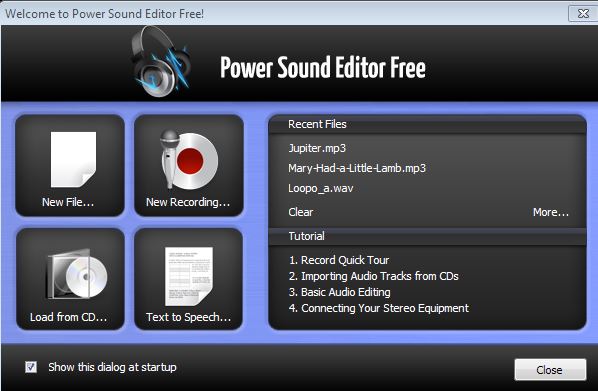
1. Now open it and you will get the opening screen as here. Click Close.
And this screen opens.
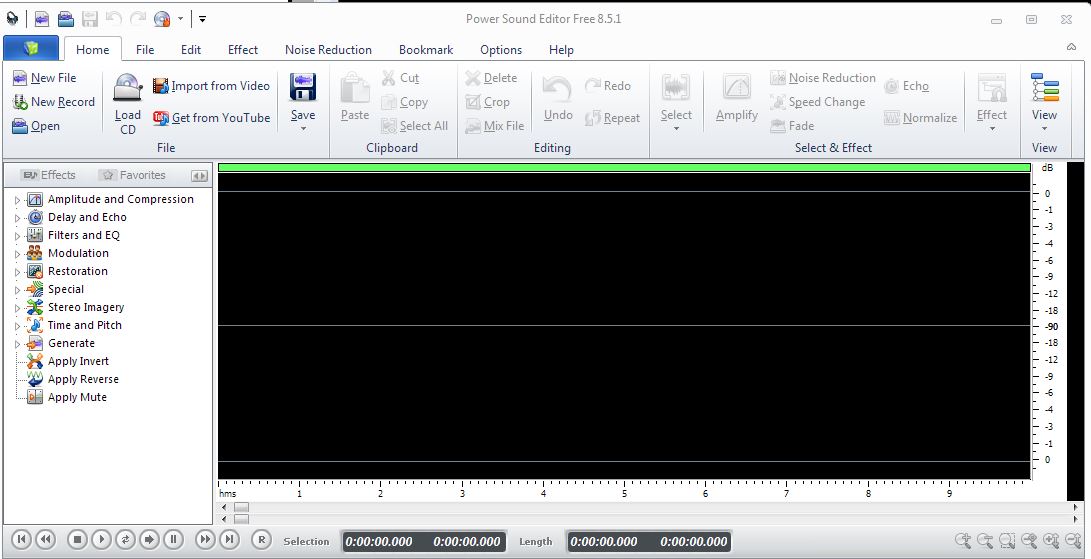
2. Click on Import from Video to open the Import Audio screen.
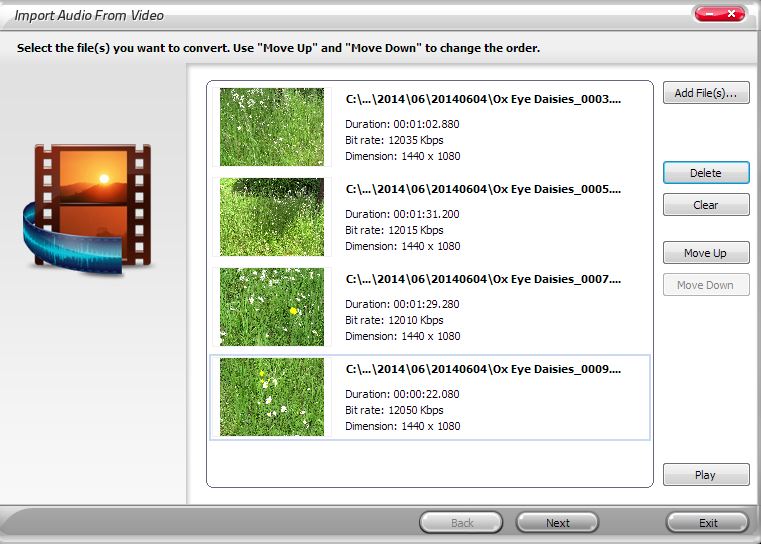
3. Click on Add File(s) to bring in your video(s) as shown.
4. At this point you can select one of the video clips and press the Play button to run the video if you wish.
5. Click Next to open the Settings box. The default setting of MP3 is fine. It might be best to set the Presets to Normal quality.
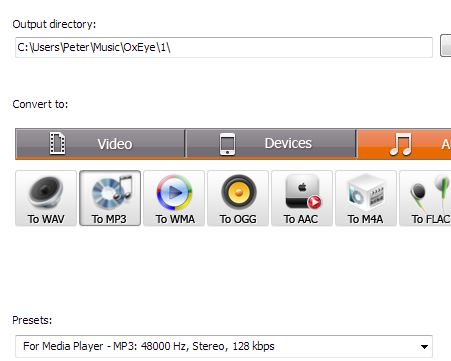
6. The Output Directory should now be chosen. You may need to make a new folder.
7. Click the Convert button and sit back and wait. If you have several files it will convert them one by one into the same folder.
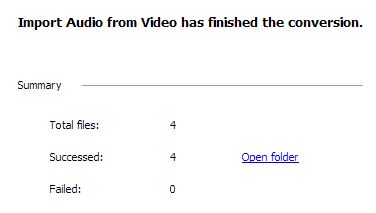
8. When done the Summary page opens with Open Folder. Click this and you will see your new files.
9. If you have wind noise or other unwanted sounds then you will need to use a program such as Audacity or Power Sound Editor Free. Save the resultant edited files.
10. Now open your AV or Video program to insert your new audio files.
Now some folk use Apple computers and so far the progam used will not work. However, Mac users are well catered for. My research shows that the best program to use is MPEG Streamclip. This can be downloaded from http://www.squared5.com/svideo/mpeg-streamclip-mac.html.
MPEG Streamclip is a free program. The benefit of using this software instead of QuickTime is the level of control you have over file type, bit rate, etc. Once MPEG Streamclip is installed on your Mac, it’s easy to turn your video into audio only.
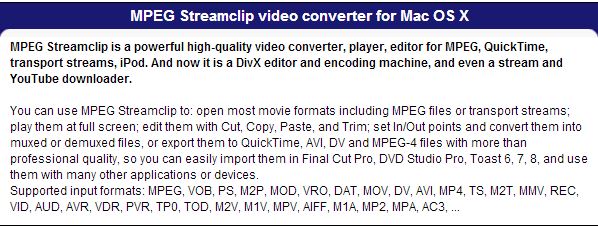
The instructions for use [extracted from this site http://www.macyourself.com/2012/01/14/extract-audio- from-any-video-file-on-a-mac/] are:-
1. Launch MPEG Streamclip, then drag your video file from Finder right into the window. You can also go to File > Open Files if that’s easier.
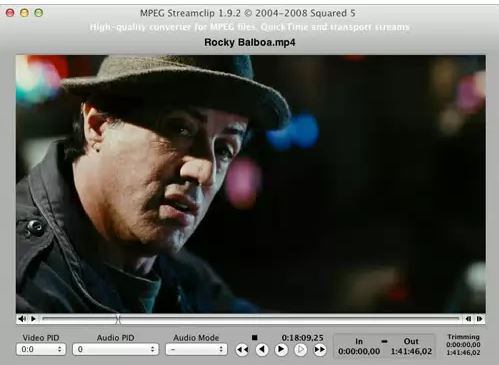 Streamclip Screen shot
2. Just like QuickTime Player, you have the option to trim your video first and use only the part you want. Move the playback indicator to the position where you’d like the video to start, then go to Edit > Select In. Now move the playback indicator to where the clip should end and go to Edit > Select Out. Choose Edit > Trim from the menu to finalize your changes.
3. Next, go to File > Export Audio. You’ll be able to choose from AIFF, MP4 AAC, and MP2 (not recommended) as the format, as well as other details like the sample and bit rates. Somewhere between 128-256 kbps will do the job most of the time. Click OK to name your new audio file and save it.
Now you’ve got an audio file to do whatever you want with. You can send it to a friend, use it in a audio/video project, import it to iTunes, etc. Enjoy!