
It can be fun and useful to add speech to photographs that include people. Adding talk Bubbles to an image that you intend to use for a card for instance is the perfect place for this technique.
1. So choose a picture of your family or a group in the market that seem to be talking together.
2. Process the photo to correct any faults.
3. Now from the Tool Box click and hold the Rectangle Tool.
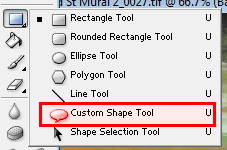
4. From the fly out list choose the Custom Shape Tool.
5. Now we need to set the Shape tool up and the Options Bar shown here is used.

6. First select the last shape in the first section as shown above.
7. This speech bubble shape has a triangle next to it. This opens up another menu with more options.
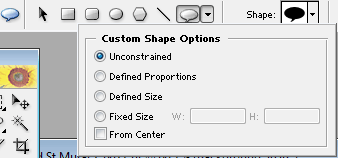
8. I suggest that the Defined Proportions is picked. This means the bubble selected will stay the same shape when changing its size.
9. Now move along to the black Bubble labelled Shape. Here there is another triangle and another drop down list shown right.
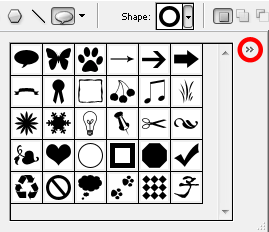
10. This contains just one Bubble shape but Photoshop provides many more. To get to them click on the Chevron shown ringed in red.
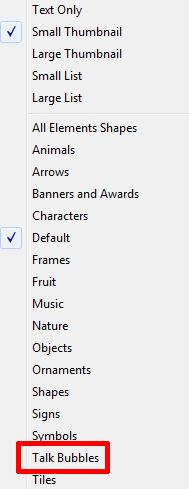
11. Yet another drop down list appears. Near the bottom of this is one labelled Talk Bubbles. Select this and the contents alter to show 14 different bubbles for you to pick.
12. There are still two more options to go. First the colour of your speech bubble will normally be white but why not colour it. Click on the box next to Colour and the Colour Picker appears from where you can pick most likely a delicate pastel hue.
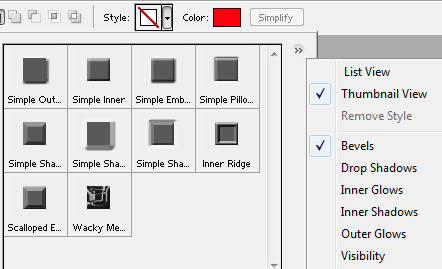
13. Then there is the Style box with its attendant arrow denoting another list of options. A few of the possibilities are shown below.
14. Whew!
15. As an example we used a photograph of part of the new Mural in Milford Street.
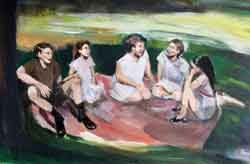
16. A bubble by the girl second from right first using the Simple Outer Style and a light pink background. Click and drag out the bubble to a suitable size for the text. It can be re-sized later if not correct now.
17. The text you now add can be in any font but a favourite is the one for cartoons called Digital Strip found http://www.blambot.com/font_digitalstrip.shtml.
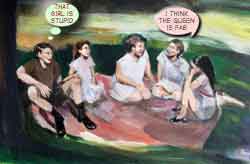
We used it for the Retro Comic Book Effect too.
18. The text can also be coloured other than black. It can be bevelled and so on using the Effects..