
Have you ever wished you had taken a shot with a wider aperture to blur the background?
We can make it happen in Elements using a blur filter and a painted mask.
1. Select and open an image where the background is too sharp.
2. Check layers palette is open and chose Duplicate layer. Rename it Blur. Click OK.
3. From the Filter drop down menu select Blur > Gaussian Blur. Set the radius to make the background look
as out of focus as you want it. The main subject will also appear blurred, do not worry. Click OK.
4. In the layers palette click on the Adjustment layer icon and pick any one, say layers. Make no adjust-
ments. Click OK.
5. We now have a mask which needs to be dragged below the Bur layer in the layers palette. Now press Alt and hover the cursor between Blur and Levels layers. Left click and Blur layer moves to the Right.
6. Click on the White mask rectangle in the Layers layer. Ensure that the foreground colour is set to Black then press Alt + Delete and the mask becomes Black and the original image is revealed again.
7. Select a soft edge brush, say 100/150 pixels, Opacity 100%. Set foreground colour White and paint over the image background to reveal the blurring.
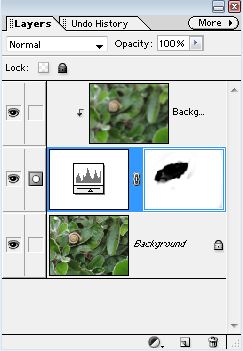
8. Reduce Brush size and Opacity as you get closer to the subject.
Have fun.
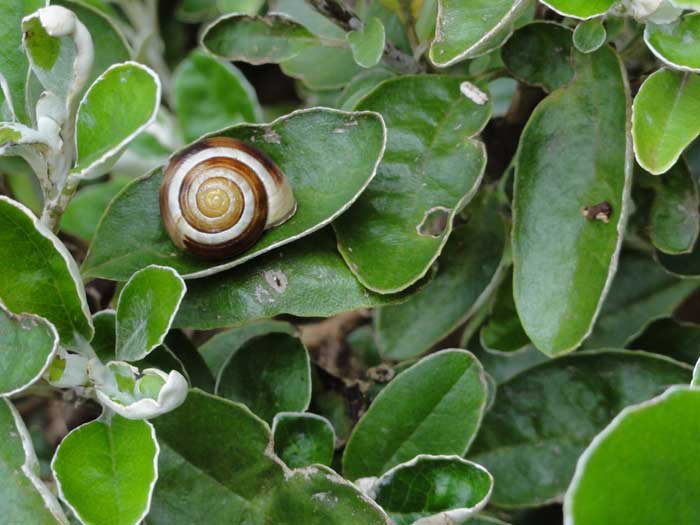 BEFORE
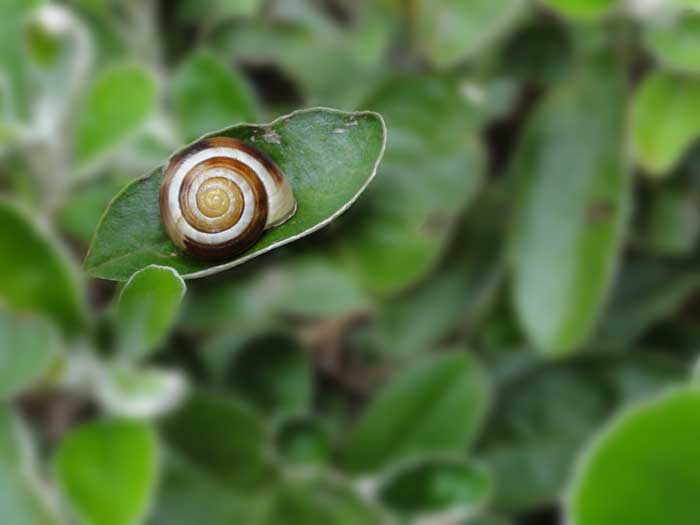 AFTER
AFTER
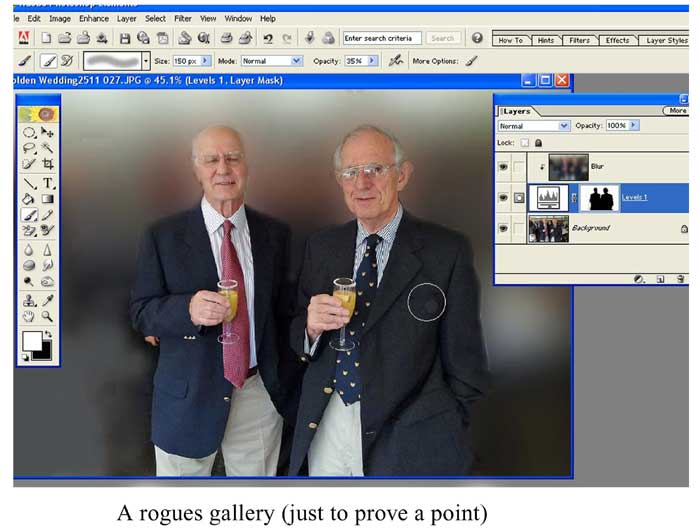 EXAMPLE