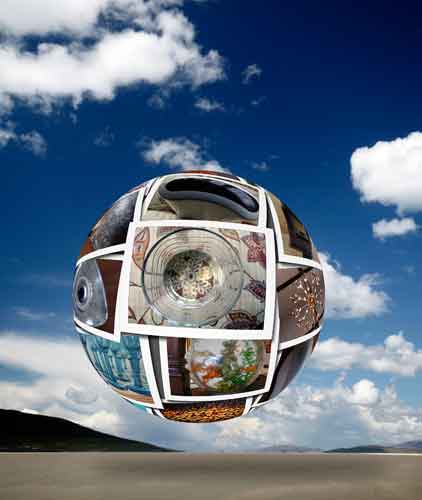
This is yet another from that genius Gavin Hoey. This version is modified hugely to ensure that it works well in Photoshop Elements 2 and above.
The concept is to have a collage of prints and to paste them onto a sphere and then place the sphere onto a suitable backcloth.
This time we shall use Picasa 3 as well. This is not essential but it can be easier if not as controllable. The method using Photoshop will not be described here.
1. Open Picasa and find a folder with some good images. Ensure that these are well exposed and sharp.
2. From this folder select 6 or 7 images at once.
3. Now click on the Collage button found at the bottom of the screen.
4. It will open as shown here.
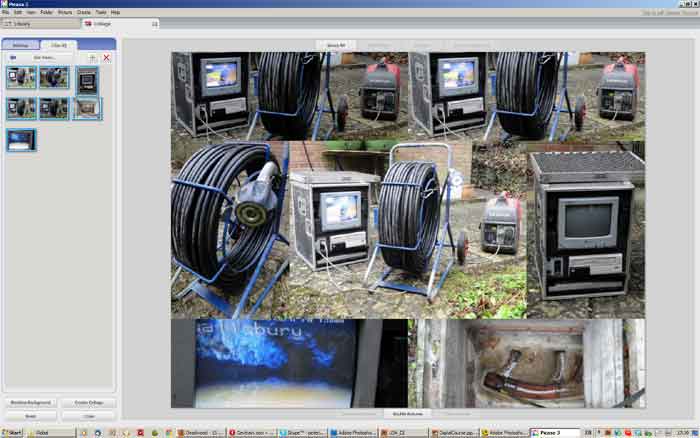
5. Note the invitation to Add more images on the left side.
6. Click on the Settings tab and note the drop down box at the top. Click on this to reveal choices of collage types. I suggest the Frame Mosaic type. This allows one to pick a specific image to be in the middle . Also there is a Grid Spacing control. Set this to fairly wide. The colour of the exposed grid can also be selected under the Background Options button. Click to pick. I suggest you tick the Draw Shadows box. Page Format set to Square: CD Cover.
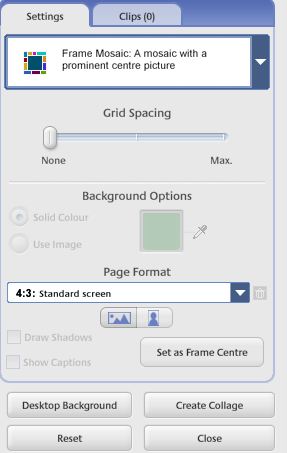
7. Now click on Create Collage under the Settings box and wait whilst the magic happens. Draft appears at first. Don’t panic at this point. Do this later.
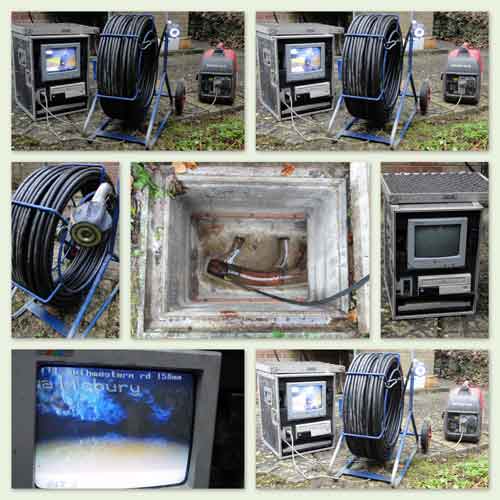 Drains Collage
8. Your Collage will have been saved now. Picasa arranged to save collages into a folder called Picasa > Collages.
9. Click on Back to Library to see the saved result. To finish Right Click on the thumbnail within Picasa and from the Drop Down menu and find Open With. Pick Photoshop from the new list.
10. Photoshop will open with the Collage. Now choose the Spherise filter from the Filter > Distort menu.
11. The amount should be 100% and the Mode = Normal. Click OK.
12. From the Tool Box pick the Elliptical tool. Using this click at the top left of the square image and drag the cursor down to the bottom right corner. Release the mouse. You should now have a circular selection directly over the sphere circle.
13. Now go to Layer > New > Layer Via Copy to make a new layer with just the round globe on a chequerboard background.
14. It is a good idea to check the Collage size. If larger than 2500px then reduce it to this figure.
15. Open a Background image such as a sky that is bigger than 2500px wide and high.
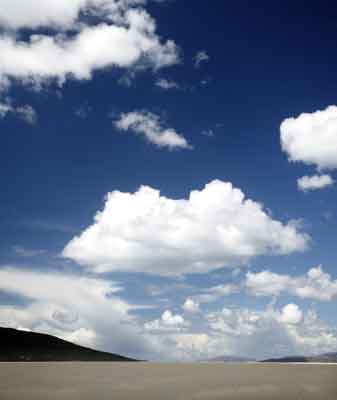
16. On the Collage layer palette click on the top layer and drag it onto the Background image. Position it for best composition.
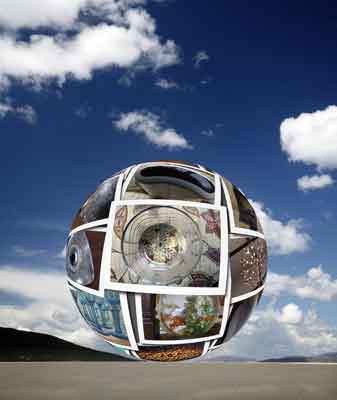
17. If you have land in the Background then for more realism paint in a shadow using black paint.