
Gavin Hoey showed a way of making interesting borders using the Quick Mask. He demonstrated that the Mask could be blurred and filtered. The actual filter used was up to you and the choice is legion.
However, since Elements does not have Quick Mask we devised a different approach using one of the Adjustment Layers mask. Then we apply Blurring to the mask and then some filtering.
Finally we load the selection from the mask and from the background layer we use the Cut command and the border is revealed.
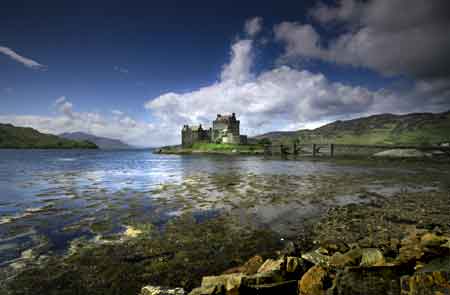
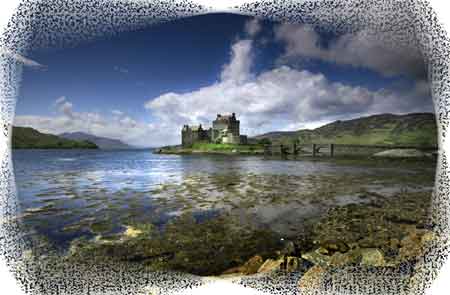
Here we see one possible result of the photograph of the Eilean Donan Castle, Scotland.
The method is as follows.
1. Open you photograph in any version of Photoshop.
2. Check it is the right size. Make any crop now. Ensure it is correctly adjusted for colour etc..
3. Use the Rectangular Marquee to make a rectangular selection to leave a border at the edge.
4. Invert the selection using Shift + Ctrl + I
5. Add a Levels Adjustment Layer without making any adjustments. All we need is the black mask. So click OK.
6. From the Filter menu select Blur > Gaussian Blur. Set to about 20 pixels. Also try Radial Blur in both the Spin and Zoom modes.
7. Now pick any other Filter. Try for instance Poster Edges or Cut Out or Fresco or Rough Pastels or for really controllable effects the Wave filter [see below for possible settings].
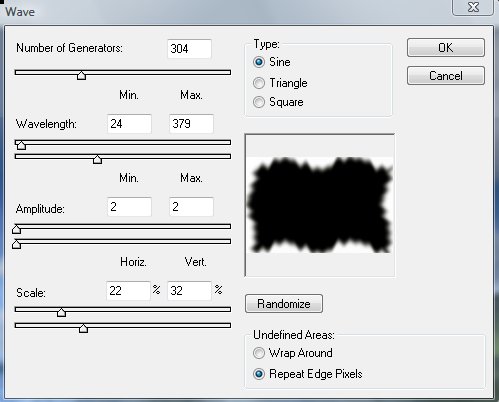
8. Now Load the Selection. Do this by holding down the Ctrl key whilst clicking on the Mask. The selection will now appear as marching ants.
9. Select the background layer and press Ctrl + X to Cut. This will remove the outer parts to reveal your border on a white background as shown above.