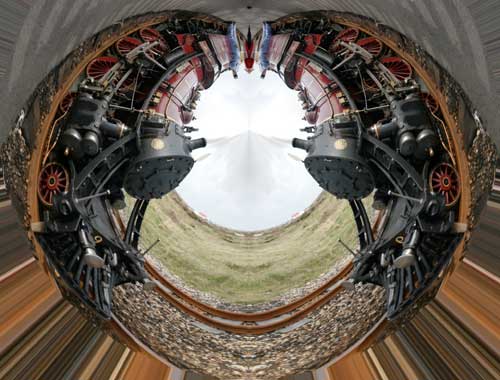
This method has been derived from that of Gavin Hoey [to whom many thanks for telling us about it][you can see his idea on his video HERE]
The principle is to convert a scene that contains buildings and blue sky into a miniature world. If you have full Photoshop then you can make an Action that will make planets at the click of a button. But those of us with Photoshop Elements have to remember each step.
Let us start with a simple image of Avington House,Itchen Abbas, Hampshire as seen here.
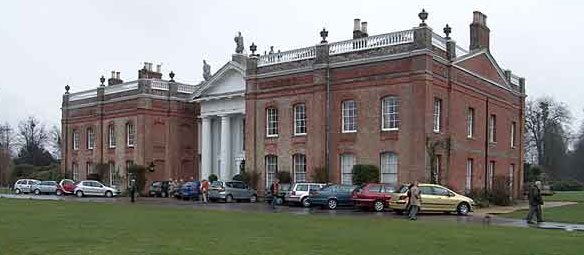
And we will convert it to
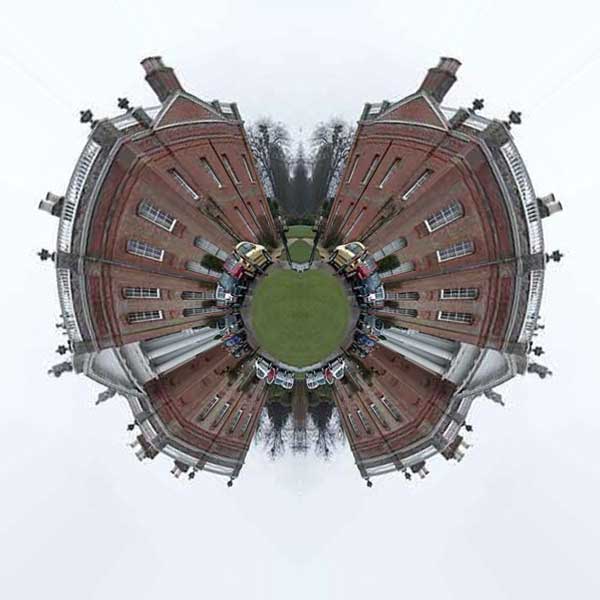
The method is as follows:-
1. Open suitable photo and make a duplicate of the background layer by going to Layer> Duplicate Layer.
2. Now flip the image using Image > Rotate > Flip Layer Horizontal. For Photoshop Select All [Ctrl + A]; Edit > Transform > Flip Horizontal.
3, Double the width of the canvas by going to Image > Resize > Canvas Size. Here change dimensions to 'percent' and in the Width box type 100. Then click on the right middle Anchor point. Press OK.4. Using the Move tool click on the top layer and drag it fully left. This layer should snap to the left edge of the background layer. If it does not just check on View > Snap to Grid. Change the Zoom so that the image fits.
5. Flatten by going to the main menu bar and Layer > Flatten Image.
6. We now stretch the combined image so that we get a square result. So go to > Image > Resize > Image Size. Tick the Resample box and remove the tick from the Constrain Proportions. Now ensure that in the Pixel Dimension area that the Width and Height are identical. Click OK.
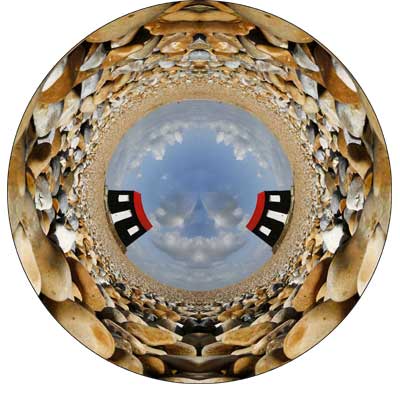
7. Turn the photo over by going to Image > Rotate > 180.
8. Select from the Filter menu the Distort section and pick out the Polar Coordinates. Here there is a choice. Pick Rectangular to Polar. Click OK.
9. Now we have the image above. You can now tidy things up if you wish. For instance the surrounding area can look awful. This has been cleaned in the example below of two houses in Sussex.
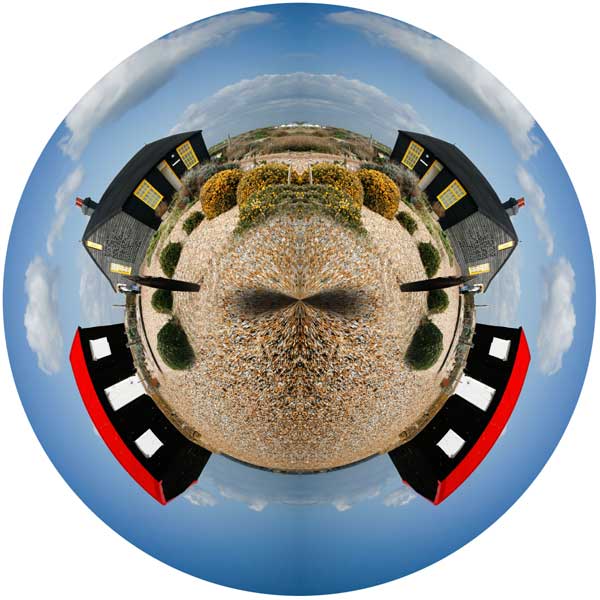
10. For an inside out world you can omit step 7. Then you get results like. Note the outside area of the Train photograph and how the outside of the red roofed house photo has been cleaned up by using a Elliptical Marquee [holding both Shift & Alt keys whilst dragging from the centre and then Inverting. Then Ctrl + X to clear the outside mess.
 OR
OR