
One of the interesting ways of treating photographs in the full version of Photoshop is Duotone. This makes an image consist of two tones that can be carefully controlled. The effect can be aesthetically satisfying. It has always been difficult to do this with Elements but a way has been found.
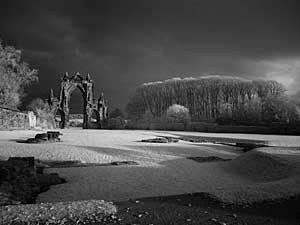
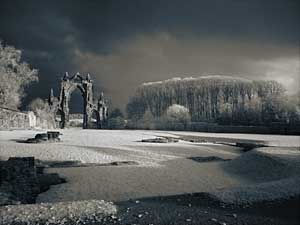
As an example we will use this photograph of Guisborough Priory taken in November 2008. The original was an Infra Red image but do not let this put you off trying this idea out.
Right how can we achieve this result?
1. Open your image - probably in colour.
2. Convert it to Monochrome. We use an Adjustment Layer called Gradient Map. This makes a very good result easily.
3. Tweak this result using another Adjustment Layer called Levels to increase the contrast.
4. Save this result as a TIFF file so that the layers are preserved.
5. Duplicate the file by going to File > Duplicate or Image > Duplicate depending on the version of PSE you have.
6. Now Flatten the file by Right Clicking on the Background Layer and clicking on Flatten Image.
7. Make an Adjustment Layer called Threshold. Move the slider until the image is split. A figure of about 60 may be OK.
8. Select the Magic Wand and set this to 100 and remove the tick from Contiguous.
9. Click on the White area and Feather the selection from 2 to 15 depending on the file size.
10. Now open an Adjustment Layer called Hue & Saturation. Click OK. Do not make any adjustments yet. Rename this White.
11. Now use the Magic Wand on the Black region and Feather the selection from 2 to 15 depending on the file size.
12. Now open an Adjustment Layer called Hue & Saturation. Click OK. Do not make any adjustments yet. Rename this Black.
13. Disable the Threshold layer by clicking on the Eye icon.
14. Open the White layer and click on Colourize. Adjust the Hue suitably and the Saturation. A low Saturation is best generally.
15. Open the Black layer and click on Colourize. Adjust the Hue suitably and the Saturation. A low Saturation is best generally
16. You can now Flatten and save and then print your masterpiece.