
Later versions of Elements supposedly let you make greetings cards easily. But the designs are not
too good. PSE2 does not have this feature but it is fairly simple to construct a card.
1. We make the
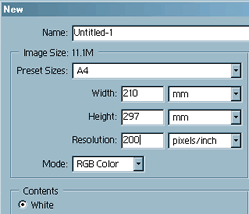
assumption that an A5 size card is needed. To do this we use an A4 sheet and make two versions of our
card on this. Then later we cut this in half.
2. So that items on the card are spaced correctly we must
first adjust the Grid. The grid is normally measured in cms or ins. But for our purposes we shall choose
Percent. The changes are made by going to Edit > Preferences > Grid.
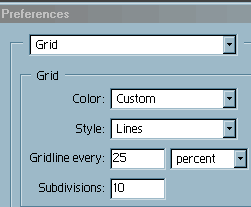
3. The Gridline every 25 percent and Subdivisions are set as shown.
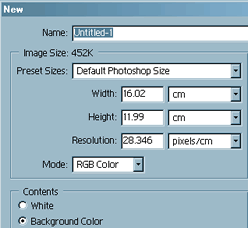
4. Now open a New
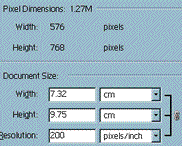
sheet from File > New. You may get a box as below.The second shot shows the settings to use. Note the
200 pixels/inch.
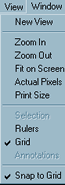
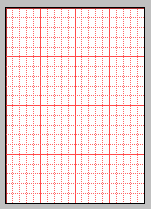
5. Click OK and the new sheet will appear. Click on View in the Menu bar and ensure that
Grid and Snap to Grid are ticked. You should now have a sheet a bit like that below complete with red
grid lines.
6. Now open a suitably prepared photograph. Check that the size and resolution are right.
Go to Image > Resize > Image Size. Ensure that the Resample Image box is clear.  .
Make the Resolution box = 200px/in. Click OK.
.
Make the Resolution box = 200px/in. Click OK.
 Note the
Document Size here. This fits neatly onto the A5 sheet with space around it.
Note the
Document Size here. This fits neatly onto the A5 sheet with space around it.
7. Using the Move tool click
on your photo and drag it onto the new sheet. Position it with 3 squares down from the top and from
the right hand side. The image should be in the right hand side of the sheet.
8. Add a drop shadow from
the Layer Styles palette [Window > Layer Styles].
9. Using the Text tool from the Tool Bar.  type
in something such as the year. Put in a Drop Shadow. Add other Styles such as Bevels and perhaps Confetti
from the Effects Palette.
type
in something such as the year. Put in a Drop Shadow. Add other Styles such as Bevels and perhaps Confetti
from the Effects Palette.
10. Merge these two layers. Do this by first opening the Layers Palette and
dragging on to the workspace. Ensure the Text layer is at the top and is highlighted. Then go to Layer
in Menu bar and click on Merge Down. This makes the Text layer and the Photo layer into one layer.
11.
Duplicate this merged layer by going to Layer in the Menu bar and click on Duplicate layer. Using the
move tool click and drag this Duplicated layer down to the bottom right hand sector. Position it 3
squares from the right and 3 squares down from the 50% grid line. You will now have the following.
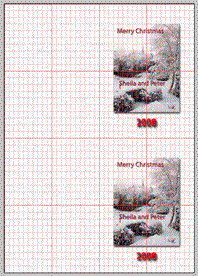 Layout of cards
with the grid.
Layout of cards
with the grid.
12. You can now add text to the left hand part to say that you made the card and maybe
the name of the Photograph.
13. You can go further and make a second sheet to enable you to insert a
message on the inside of the card.
14. You now need to print you work onto double sided printing paper.