
How to use the Flexify Filter
Among many other companies Flaming Pear make some fascinating and interesting filters. They offer some free filters and some free trials of other filters. Go to their web site on http://www.flamingpear.com/free- trials.html and see what they offer.
Notice at the top of the list is How to Install. Actually this leaves you in the dark somewhat. So here are the steps needed
1. Having downloaded click on the package to open. Keep on clicking until you get this screen. Here there are 2 PDF’s to guide you. Read the Guide pdf. Here it has a better installation guide.
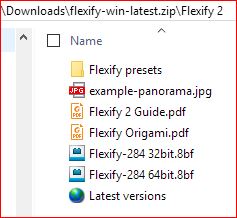
2. The essential part reads.
Just drag the plug-in filter into the folder where Photoshop expects to
find it.
On OS X, it will be similar to Applications/Adobe Photoshop/Plug-ins.
On Windows, it will be similar to C:/Program Files/Adobe/Adobe Photoshop/Plug-ins.
You must restart Photoshop before it will notice new plug-ins.
The second item in the Free Trials is Flexify 2 and you can safely download this.
Now look further down the page. At the bottom you can download the free items called Free Plug Ins.
Down a little more and click on Older Software Here for the Original Flood filter for instance. I can recommend Designer Sextet filters for some fun.
Now having inserted the filters into Photoshop open up an image. Resize it to about 1000 x 700 pixels for test purposes. Tweak the image to get a good result. Save this is a folder for Flexify images.
Now click on Filter in the Menu bar and in the bottom
section you should find Flaming Pear. Click to open this and
you have a drop down list. Flexify will be there. Click to
open the program.
There are some important parts to note. For instance the
letter i Clicking this reveals a lot of help as to the meanings
of the parts of this screen.
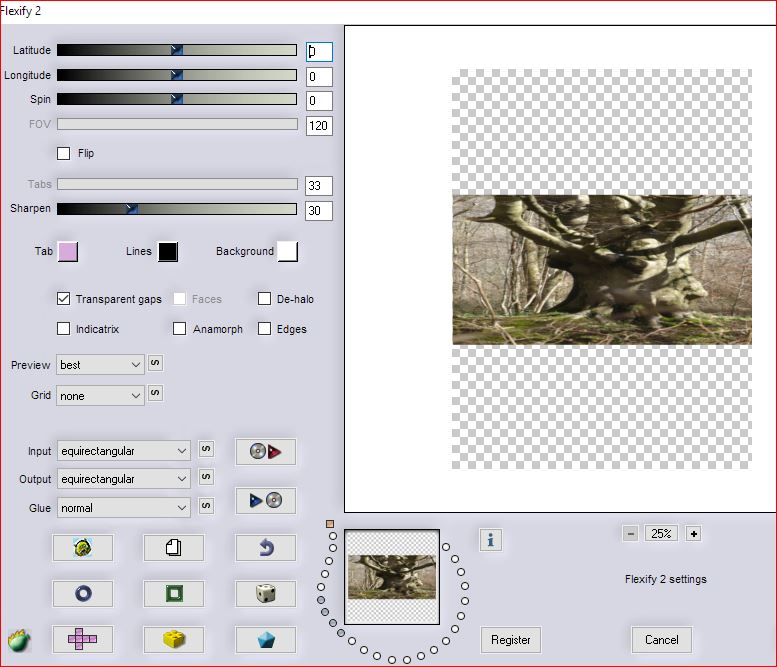
The two boxes labelled input and output will be the go to places. The input is asking you the shape of your input image. Normally a rectangle and so the equirectangular is used. But try any of the others. There 33 in all.
The output determines the shape of the final image. Here there are about 300 variations. Quite staggering.
On top of this is the Blend Mode options. All those we know in Photoshop plus many many more.
So it is hard to be definitive about the way to operate this filter. You simply have to keep on playing until you find combination you like. Then click OK.
There is more such as using the Little Planet button and the brilliant Random die button.
Do not forget that Flexify transforms spherical panoramas, re-projects world maps and designs 3D models.
Flaming Pear suggest that you can download some planet photos for use on Flexify e.g. Type Planetary Maps
into Google to get a good selection.