
This is sometimes a very useful technique but unless you know how to do it is apparently not possible. It is easy, however, especially if you have ever played a piano since it requires the dextrous use of sveral fingers at once. As always it gets much easier with practise.
Here are the steps
1. Open an image with an elliptical shape. Here is one of a statue currently in the Close, Salisbury.
To use click and drag onto your workspace. 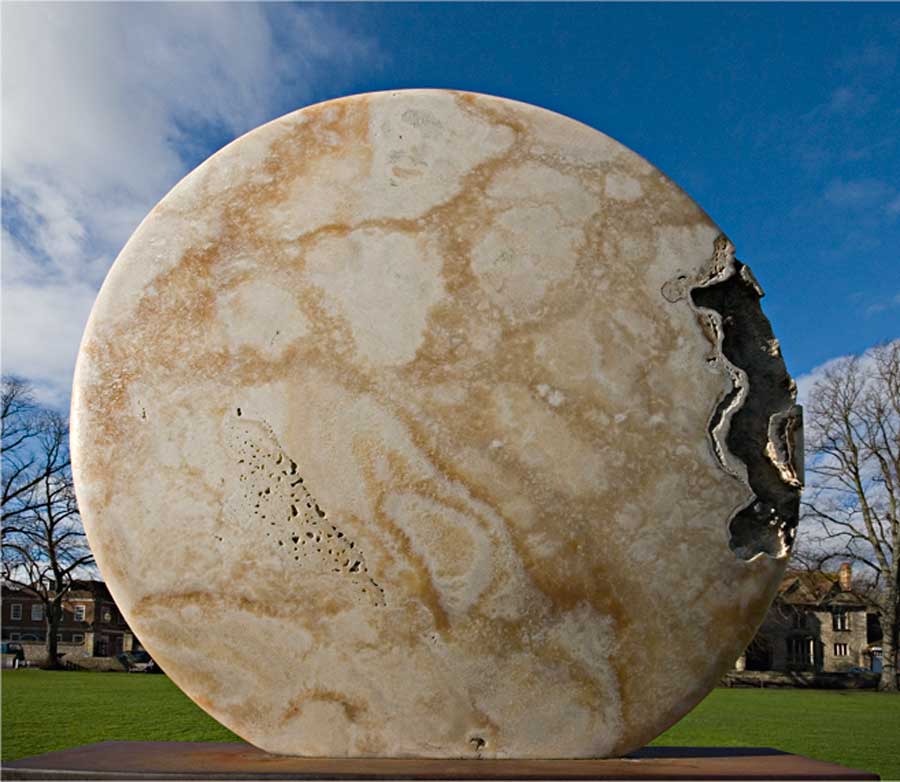
2. Choose the Elliptical Marquee tool [under
the Rectangular one]
3. Ensure that the tool is Reset so that the New Selection icon is picked.
4. Place the cursor in the centre approximately and start to draw holding the left mouse key down.
5. Now press the Alt key down and the selection will expand as you continue to draw from the starting
point.
6. If you see that you are not in the correct place (and this is certain to be the case) then without letting
go of the left mouse or Alt keys press the Spacebar.
7. As soon as you do this moving the mouse will move the Selection.
8. Let go the Spacebar and now you can continue making the Selection.
9. Continue making adjustments until you get the best fit and let go of the left mouse key and the
Alt key.
10. Your Selection is now made.
11. In the case of the Example attached however I found that I was unable to get a fit properly and
so I had to Add to and Subtract from the Selection. I did this as follows.
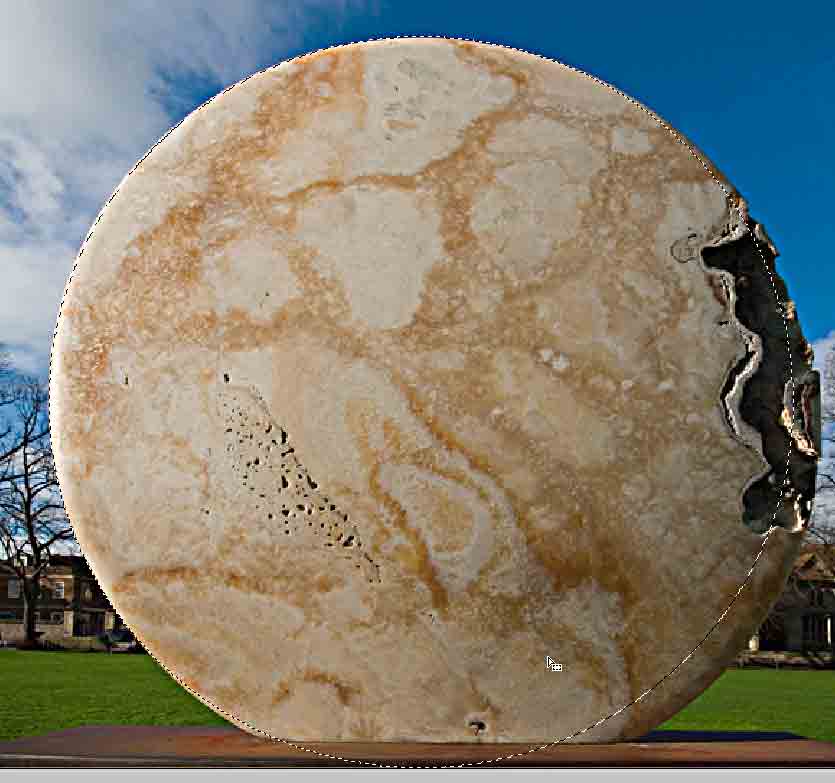
12. First I pressed the Shift key and started
to draw. I let go the Shift key and pressed the
Alt key to expand from the centre as before.
13. I continued until I approximately covered the whole of the statue again using the Spacebar to move
the Selection. It is essential that the left mouse key is held down until you are happy with
the Selection.
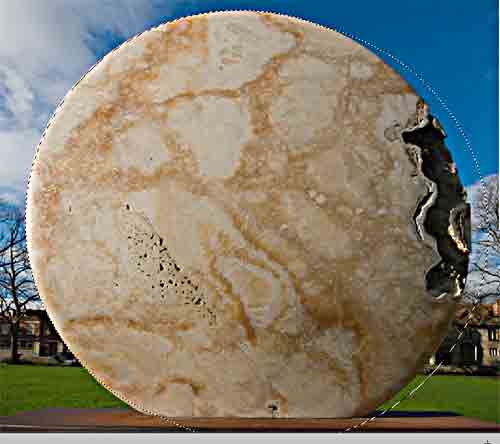 In
progress with the second elliptical selection.
In
progress with the second elliptical selection.
14. Then I noted that the bottom of the statue
was flat. So I removed the Selection part at the
bottom by shifting to the Rectangular Marquee tool.
15. I first held down the Alt before the left mouse key so that I was in the Subtract mode. Then
from outside the current Selection I started to draw in line with the base and drew a rectangle below
the statue. Once again by using the Spacebar I could move the Selection.
16. Then I release the mouse key and the final Selection was made.
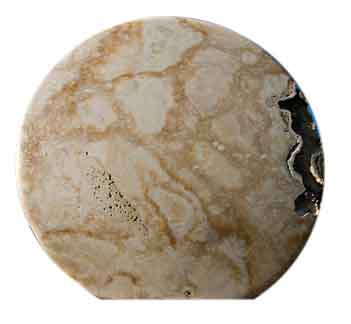 The
final selection on a new layer
The
final selection on a new layer