
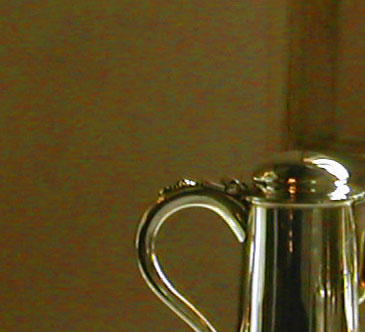
 Magnified detail showing
coloured noise.
Magnified detail showing
coloured noise.
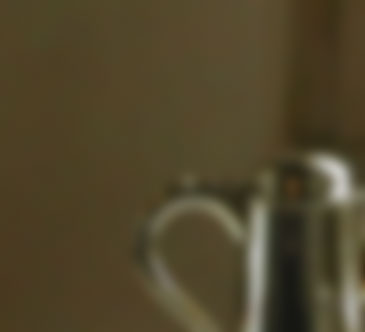 Gaussian Blurred layer
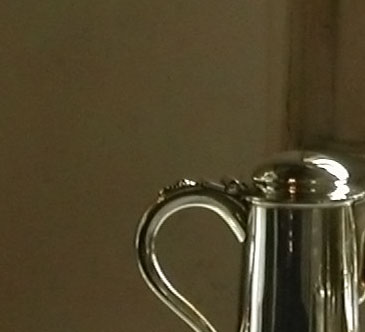 With noise reduced.
The easiest way to correct random coloured noise is to use a blurred copy of the image to knock out the noise. To try this:
Access the Layers palette and duplicate the image by dragging the Background layer onto the Create A New Layer button. The Background copy layer appears and is selected automatically.
Choose Filter > Blur > Gaussian Blur.
Set a low blur radius of about 2 to 6 pixels in the resulting dialog box. You don't typically need a large setting to fix the subtle noise we're targeting.
Click OK and set the blending mode of the Background Copy layer to Colour. This applies the colour of the image to your original, but doesn't affect sharpness. You can see our results above. As you can see, toning down the noise in images is not too difficult and it results in a significantly better image.
The above method won't work for all images. On occasion, you'll find that it actually creates more general noise even as it fixes the colored noise problem. Because of this, you may need to adapt the blurring method to use locally rather than on the entire image. You can also use the Eraser tool to erase portions of the layer that are unnecessary if you think it's causing strange effects.