
Now is a good time to work out how to make reasonably accurate snow and icicles to add to your photos in time to make Christmas cards and the like. The method described is not the only way to do this task and indeed it may not be the best method but it is not too bad. So have a go.
1. Open a suitable photograph in Elements. Perhaps an up turned plant pot that would make an ideal perch for a robin or in our case an outside view of a window. Change the name of the layer from background layer to say Window.
2. Add a new empty layer. Label this layer as Snow by double clicking on the actual word Layer 1 and typing Snow.
3. Select an 80% hard brush of a suitable size and with the Foreground / Background colours Black / White start to paint white snow over various areas needing snow.
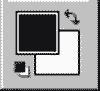
4. Add shading using the Burn and Dodge tools set to low Opacity [3 to 9%].
5. Add texture to the snow by first adding Gaussian Noise. This should be monochrome& Gaussian as shown here. Try an amount of 6.
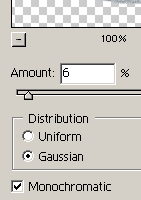
6. Now Lock the Transparency of this layer so that you can soften the texture without softening the edges of the snow by using Gaussian Blur of about 1 to 5.
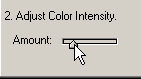
7. We need to add a small amount of blue and cyan colour and we can do this using Colour Variations. It is suggested that you set the slider controlling the amount is set low. Then one click of subtract Red and add Blue.
8. Add another empty layer for the Icicles. Label the layer Icicles.
9. Using a small hard edged brush and a mid-tone grey paint on some icicles.
10. Use the Dodge and Burn tools again to put in some shading. This can be in a random fashion.
11. Use the Plastic Wrap filter found in the Artistic group. Adjust the settings to suit. Try the maximum.
12. You can add a second Plastic Wrap filter or even more.
13. Use Blending Mode - Hard Light
14. From the top of the Layers Palette select the Blending Modes list. From the list pick Hard Light.
15. Erase the tops of the icicles so that they merge with the snow. You can drag this layer below that of the Snow layer.
16. Make a copy of the Icicle layer to form a shadow of the icicles.
17. So drag this copy layer below the Icicle layer and Move the shadow to one side.
18. Now it will not look right yet so reset the Foreground / Background colours to Black / White, Lock the Transparency of this layer, and then press Alt + Backspace to make this layer black. Reduce the Opacity to suit.
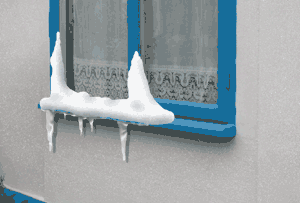
19. As a final touch add snow falling from the Effects palette > Blizzard.
And that is that.