
Using Kizoa
Kizoa is a free program that allows you to make Slide Shows or Audio Visual Displays. But it has many other uses too. Such as making Collages or Movies.
This program was chosen because it can be used on Macs as well as Windows. It may be fine using the Linux operating system. The reason it works on all these platforms is because it is an on-line program as iPiccy.
The opening screen is here:-

There are lots of things to take note of.
I have highlighted three numbers to show the most important tabs.
But notice the very top line of boxes. Here are some useful links. It lists the Group and it has an icon to make the full. This Group enables a group of people such as one of my Classes to link together and share. Go to My Account. Here you can make a new group and invite other people to join in.
The Guide opens with a set of linked YouTube videos explaining parts of Kizoa. It is worth a look.
Most of this on-line program like iPiccy is intuitive.
You will discover how comprehensive it is. You can upload videos and photos directly to Facebook and Flickr and other places.
As it says in the middle of this screen you can upload and store images in named Albums.
Edit
There is an icon in the row of icons at the base of the screen along with Facebook, email, Twitter and Download.
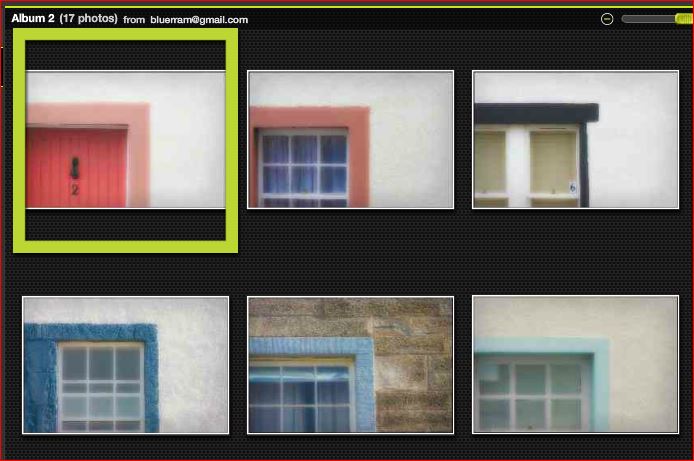
Using this lets you make many corrections but I suggest you prepare the images in iPiccy beforehand. Save your chosen set of photos in a folder then upload them into an Album in Kizoa. I have shown below part of the images in an Album of windows of Fife.
Going on to the Movie Maker section [No.2]
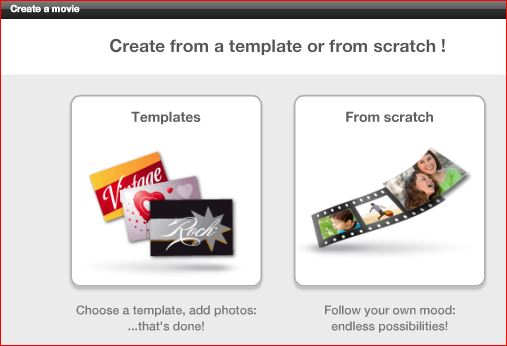
I would ignore the Templates part and go to From Scratch. Here pick 4:3 ratio
and press Validate. Now press Add photos/videos and then My Computer. Pick
some photos sized at about 1600x1200 pixels. They will upload onto the
desktop. Now drag down a photo to the appropriate space. If you have
preprocessed your images properly then click on the No Crop and Confirm.
Drag down another photo and so on. You are now able to Play your slide show.
There are no Transitions between images or any sound or speech as yet. Press the Red X to get back.
On the left side the menu shows Video Intros. These are useful. Hover over any to see what happens. Choose one and drag to the start area. Now Click on the Intro and another screen labelled Video appears. Here you can add Text and other items. The length of time it runs for is also changeable here. Click Validate to save.
There are also Video Outros for the ending of your show.
Transitions come next. Click on the tab. A page of brown icons comes up. Hover over any to see what happens. Drag one onto the T. If you hate it drag it off again.
This is enough to get started.